
A message from our founder

We have started this site and the tools we are developing to help victims of crimes and domestic violence, enabling them to better report matters to the law enforcement agencies.
We have been in the field of dealing with domestic violence for over 23 years, and want to give out help and experience to those who need it, giving them tools and support mechanisms
Questions, Legal and Privacy page
How to use the DV Journal app updated 30/07/2026 ver 1.0.5
Wildfern Journal App — User Instructions
1. Opening the app
When the app opens, the Wildfern Journal splash screen appears, followed by the ordinary diary.
The diary is designed to look and operate like a standard personal journal. The protected journal is not displayed on the normal opening screen.
2. First-time setup
The first time the app is opened:
Read and accept the app disclaimer.
Create the protected journal PIN.
Create the separate diary PIN.
Store the recovery information somewhere secure and separate from the phone.
Use different PINs so the protected journal cannot be opened accidentally.
What each PIN does
Protected journal PIN: Opens the private incident journal.
Diary PIN: Opens or returns to the ordinary Wildfern diary.
The PIN settings are not displayed inside the ordinary diary settings.
Using the Wildfern diary
3. Diary home screen
The home screen displays:
A greeting and journal header
Search field
New Entry button
Recent diary entries
Bottom navigation for Home, Journal, Calendar and Settings
A fern icon in the centre
The diary can be used as a genuine everyday journal.
4. Creating a diary entry
Tap New Entry.
Enter a title.
Select or confirm the entry date.
Write the diary entry.
Add photographs when required.
Tap Save Entry once.
After saving, the entry returns to the diary and appears in the recent entries list.
Avoid repeatedly tapping the Save button while the entry is being processed.
5. Viewing and editing entries
Open the Journal page to view all saved entries.
To open an entry:
Tap the entry card.
Read or edit the information.
Save any changes.
The search field can be used to locate entries by words in the title or entry text.
6. Calendar view
Tap Calendar in the bottom navigation.
The calendar allows entries to be viewed by date. Select a date to see the entries recorded for that day.
7. Changing the diary colour theme
Open Settings.
Tap Colour Theme.
Select one of the available themes:
Sage
Rose
Ocean
Violet
Sand
Dark
Close the theme panel or return to the diary.
The selected colour theme applies throughout the Wildfern diary and remains selected after the app is restarted.
The theme list can be scrolled on smaller screens.
8. Backing up the diary
The diary backup stores the ordinary Wildfern entries and their photographs.
Open Settings.
Tap Device Backup or Export Journal.
Choose where the backup should be saved or shared.
Confirm that the file has been stored successfully.
A backup filename will appear similar to:
Wildfern_Journal_Backup_20260730_124700.zip
The filename does not contain any reference to the protected journal.
Keep backup files somewhere private and protected.
9. Restoring a diary backup
Open Settings.
Tap Restore Backup or Import Journal.
Select the Wildfern backup ZIP file.
Confirm the restore.
Wait until the restore-complete message appears.
A diary backup may restore:
Journal entries
Entry photographs
Diary header image
Saved colour theme
Older compatible diary backups can also be selected.
Restoring a diary backup does not restore the protected journal. The two backup systems are separate.
Opening the protected journal
10. Three-tap fern access
From the Wildfern diary:
Locate the round fern icon in the centre of the bottom navigation.
Tap the fern three times quickly.
The PIN screen will open.
Enter the protected journal PIN.
Entering the protected PIN opens the private journal.
Entering the diary PIN returns to the ordinary Wildfern diary.
A single tap or slow taps should continue to appear like ordinary diary navigation and should not reveal the protected journal.
Using the protected journal
11. Protected journal home screen
The protected area provides access to functions such as:
New incident or journal entry
Timeline
Photographs, videos and documents
Evidence export
Device backup
Safety and support information
Settings
The exact buttons may vary slightly depending on the installed app version.
12. Recording an incident
Tap New Entry or Log Incident.
Enter the date and time of the incident.
Write a clear description of what occurred.
Select any relevant categories or flags.
Choose the severity level.
Add photographs, videos, audio or documents when appropriate.
Record any police or support-service involvement.
Save the entry.
Record factual information where possible, including:
What happened
Where it happened
Who was present
Words that were spoken
Injuries or property damage
Witnesses
Police report or occurrence numbers
When photographs or recordings were created
Avoid editing original media before adding it to the journal.
13. Timeline
The Timeline displays protected entries in date order.
It may be used to:
Search entries
Sort newest or oldest first
Filter by incident category
Review attached media
Open and edit an existing entry
14. Adding photographs and videos
Media can be added while creating or editing an entry.
Depending on the device, options may include:
Take Photo
Record Video
Choose from Gallery
Select File
Record Audio
Check that the attachment appears inside the entry before closing the screen.
15. Evidence export
Evidence export creates a copy of selected protected information for saving or sharing.
Open Evidence Export.
Select the entries or date range.
Review the information that will be included.
Choose the available export format.
Add a password when the option is available and appropriate.
Save the export to a secure location.
Before providing an export to another person, open it and confirm that:
The correct entries are present
Dates and times are correct
Photographs and attachments are included
No unrelated private information has been included
An export is a copy. It does not delete the original entries from the app.
16. Protected journal backup
The protected journal uses a separate backup from the ordinary diary.
Open the protected journal Settings.
Select Device Backup.
Create the backup.
Save it somewhere secure.
Confirm the file can be located before relying on it.
Do not restore an ordinary Wildfern diary backup through the protected journal restore function, or vice versa.
Safety and privacy controls
17. Quick Exit
Use Quick Exit whenever the protected journal needs to be hidden quickly.
Quick Exit:
Closes the protected area
Returns to the ordinary Wildfern diary
Requires the protected PIN before access is granted again
Become familiar with the location of Quick Exit before relying on it.
18. Automatic locking
The protected journal automatically locks after inactivity or when the app moves into the background, depending on the selected settings.
When the app is reopened, it returns to the Wildfern diary rather than displaying protected information.
19. Closing the app safely
After using the protected journal:
Use Quick Exit.
Confirm that the Wildfern diary is visible.
Close or minimise the app normally.
Do not leave the protected journal visible before handing the phone to another person.
20. Forgotten PIN or recovery information
Use the recovery option shown on the PIN screen.
Recovery information should be stored somewhere secure. For privacy reasons, the developer cannot retrieve a PIN or access locally stored journal entries.
Do not repeatedly guess a PIN if the app has an attempt limit or delay.
Recommended backup routine
Create regular backups of both areas separately:
Wildfern diary backup: Everyday diary entries and diary photographs.
Protected journal backup: Protected entries, evidence and associated media.
After creating a backup:
Confirm the file exists.
Keep it in a secure location.
Avoid obvious filenames or folders that reveal sensitive information.
Do not leave copies in shared email, shared cloud storage or shared computers.
Test the restore process using a safe device or spare copy when practical.
Important information
The ordinary diary and protected journal are separate.
The diary backup does not include protected entries.
The protected backup does not replace the ordinary diary backup.
Deleting the app may remove locally stored information unless a successful backup has been created.
The app is a recording and organisation tool and does not replace emergency, legal, medical or professional advice.
In an immediate emergency, contact the relevant emergency service rather than attempting to record information in the app.
The basic answer is no, the app does not automatically share any of your data. The data is saved to your device in an encrypted folder, and you have the choice to send the information that you have recorded on the app, to a person via email or file sharing. The app is yours and does not share data automatically to enhabce victims sfafety.
We or the app are not a replacement for the emergency services and agencies that respond to such incidents. Call 000 for police when in danger or experiencing domestic violence.

Australian and Global Versions of Wildfern
Wildfern is available in two versions: the Australian version and the International version.
Both versions are built around the same purpose — providing a private and structured way to document incidents, behaviours, communications and other information that may be relevant to domestic and family violence, coercive control, stalking, harassment or abuse.
The main difference between the two versions is the jurisdiction-specific information and terminology provided within the app.
Wildfern Australia
The Australian version of Wildfern is designed specifically for users in Australia.
It may include terminology, definitions, information and guidance that reflect Australian domestic and family violence frameworks, legislation and support systems.
Depending on the content available within the app, this may include references to:
domestic and family violence terminology commonly used in Australia;
coercive control;
stalking and harassment;
protection or domestic violence orders;
Australian police and legal processes;
Australian support organisations and services; and
terminology used by Australian courts, police and support agencies.
Because laws and definitions can differ between Australian states and territories, information provided within Wildfern should be treated as general information rather than legal advice.
Users should always refer to the legislation, police service, court, legal service or domestic violence support organisation relevant to their own state or territory.
Wildfern International
The International version of Wildfern has been designed for use in countries and jurisdictions around the world.
The core incident-recording and evidence-management features remain similar to the Australian version, but the International version uses more country-neutral terminology wherever possible.
It avoids assuming that Australian laws, legal definitions or processes apply to users in other countries.
For example, a behaviour may be described within Wildfern as stalking, harassment, coercive control or abuse for organisational and informational purposes, but the legal definition of that behaviour may be different in the user's country, state, province or region.
The International version is therefore intended to help users record what happened, rather than determine whether a particular criminal offence or legal definition has been established.
The Core Wildfern Experience Remains the Same
Both versions are designed to provide users with tools to:
record incidents and events;
add dates and times;
document patterns of behaviour;
record relevant categories or indicators;
attach photographs, videos, audio, files or other information where supported;
review incidents using a timeline;
create backups;
export information;
prepare information for sharing with a trusted person, support service, legal representative or appropriate authority; and
maintain control over their information.
Wildfern does not determine whether abuse, stalking, coercive control or another offence has legally occurred.
That determination depends on the applicable law and the circumstances of each individual case.
Legal and Support Information
The Australian version may provide Australian-specific legal terminology and support information.
The Global version uses broader wording because legal definitions, emergency numbers, court systems, protection orders and support services differ considerably throughout the world.
International users should consult trusted local resources for information about:
domestic or family violence laws;
stalking and harassment laws;
recording conversations;
privacy and surveillance laws;
protection or restraining orders;
reporting incidents to police;
evidence requirements;
emergency assistance; and
domestic violence support services.
Which Version Should I Use?
Users located in Australia will generally find the Australian version more relevant because its terminology and supporting information are designed with the Australian environment in mind.
Users outside Australia should generally use the International version, which has been written to avoid reliance on Australian-specific legal terminology and processes.
A person's location, circumstances and applicable law should always be considered when deciding what information is relevant.
Important Information
Wildfern is an information-recording and organisational tool.
It is not:
an emergency service;
a police reporting system;
a legal service;
a substitute for professional legal advice;
a medical service; or
a domestic violence counselling service.
Information presented within Wildfern is intended to assist users in understanding and organising information. It should not be interpreted as a legal conclusion about any person, behaviour or incident.
If there is an immediate risk to safety, users should contact the emergency services or an appropriate domestic or family violence support service in their country or region when it is safe to do so.
Privacy Policy
Legal, Privacy and Device Storage Notice
My DV Journal, also known as Wildfern, is designed as a private, local journal and evidence-organising tool. The app is intended to help you record notes, events, photos, videos, audio, documents and other information that you choose to save on your own device.
The app does not send your journal entries, evidence, media, notes or personal information to the developer, to an external server, or to a cloud database controlled by the developer. Information you enter into the app is stored locally on the device unless you choose to export, share, back up, transfer or disclose that information yourself.
Device storage and security
Different phones, tablets, operating systems and device manufacturers handle storage and security in different ways. iOS and Android use different security models, storage locations, encryption methods, backup systems and permission controls. The level of protection available to your data may depend on factors including:
the type of device you are using;
whether the device has a passcode, PIN, password, fingerprint or face unlock enabled;
whether the device is locked or unlocked when accessed by another person;
the version of iOS or Android installed;
the manufacturer’s security features;
whether the device is jailbroken, rooted, modified or compromised;
whether cloud backup, iCloud, Google backup, device backup, file sharing or photo syncing is enabled;
whether you export, screenshot, print, email, message, save or share information from the app.
The app may use local app storage and device security features where available, but no app can guarantee that information stored on a phone will never be discovered, accessed, copied, recovered or viewed by another person, especially if that person has access to the device, knows the device passcode, can unlock the phone, has access to backups, or uses technical recovery or forensic tools.
Risk of discovery
You are responsible for deciding whether it is safe for you to use this app on your device. If another person has access to your phone, knows or can guess your passcode, controls your accounts, monitors your device, checks your apps, views your notifications, accesses your backups, or uses spyware or other monitoring tools, information stored in or associated with this app may be discovered.
The app may include privacy, lock, PIN, decoy or quick-exit features. These features are intended to reduce risk and improve discretion, but they are not a guarantee of safety, secrecy or non-discovery.
Exports, backups and shared files
If you export, back up, save, print, email, upload, transfer or share any journal entry, evidence bundle, PDF, ZIP file, photo, video, audio file or other information from the app, that exported material may be stored outside the app. Once information leaves the app, it may be controlled by the receiving app, storage location, cloud account, email provider, messaging service, file manager or other person.
You are responsible for protecting exported files, backups and shared material. This includes choosing safe file names, safe storage locations, strong passwords where available, and carefully checking who can access the destination where the information is saved or sent.
No responsibility for unauthorised access by others
To the maximum extent permitted by law, the developer is not responsible if information stored on your device, in your backups, in exported files, or in files you have shared is accessed, discovered, copied, deleted, recovered, disclosed or used by another person. This includes situations where another person gains access to your device, unlocks your phone, accesses your accounts, views your backups, uses technical recovery tools, or otherwise obtains information from your device or from files you created using the app.
User responsibility
Before using the app, you should consider your personal safety and whether your phone is private and secure. You should regularly review your device security settings, cloud backup settings, app permissions, shared accounts, photo syncing, notification settings and exported files.
If you believe your device is being monitored, controlled or accessed by another person, you should consider using a safer device and seek appropriate support.
Not emergency, legal or professional advice
My DV Journal is not an emergency service, legal service, counselling service or police reporting service. It does not automatically contact police, emergency services, courts, lawyers or support agencies. The information in the app is general only and is not legal advice.
If you are in immediate danger, contact emergency services. In Australia, call 000 in an emergency.
By continuing to use this app, you acknowledge that you understand the risks of storing sensitive information on a mobile device and that you are responsible for deciding whether this app is safe and appropriate for your circumstances.
These terms are governed by Australian law.
Further legal and privacy statement and Who to contact for support
Contact
Mark Jones
Email: covecompass2026@gmail.com
Terms and conditions
Effective Date: 18/05/2026By using Domestic Violence Incident Diary, you agree to the following terms.
Purpose
This App is a documentation and personal record tool. It does not provide legal, medical, or emergency services.
User Responsibility
You are responsible for:
Maintaining confidentiality of your device and PIN Safeguarding exported files Ensuring your device security
The information and data integrity is the responsibility of the user.
Limitation of Liability
To the fullest extent permitted under Australian law, Mark Jones is not liable for:
Loss of data due to device malfunction Unauthorized device access Indirect or consequential damages
Governing Law
These terms are governed by Australian law.
Privacy Policy
Effective Date: 26/02/2026
App Name: Domestic Violence Incident Diary
Developer: Mark Jones
Contact Email: covecompass2026@gmail.com
Country of Operation: Australia
DV App screenshots
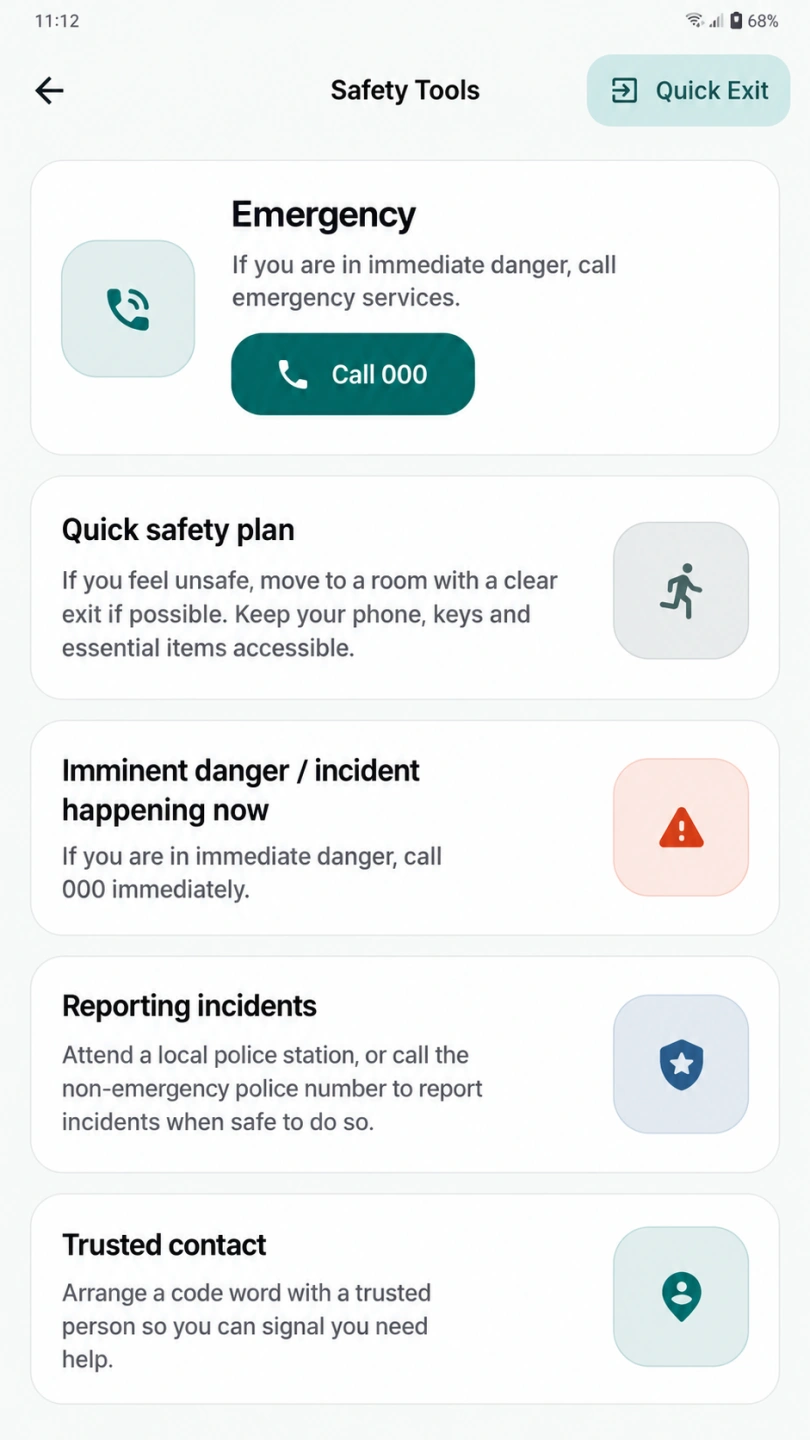
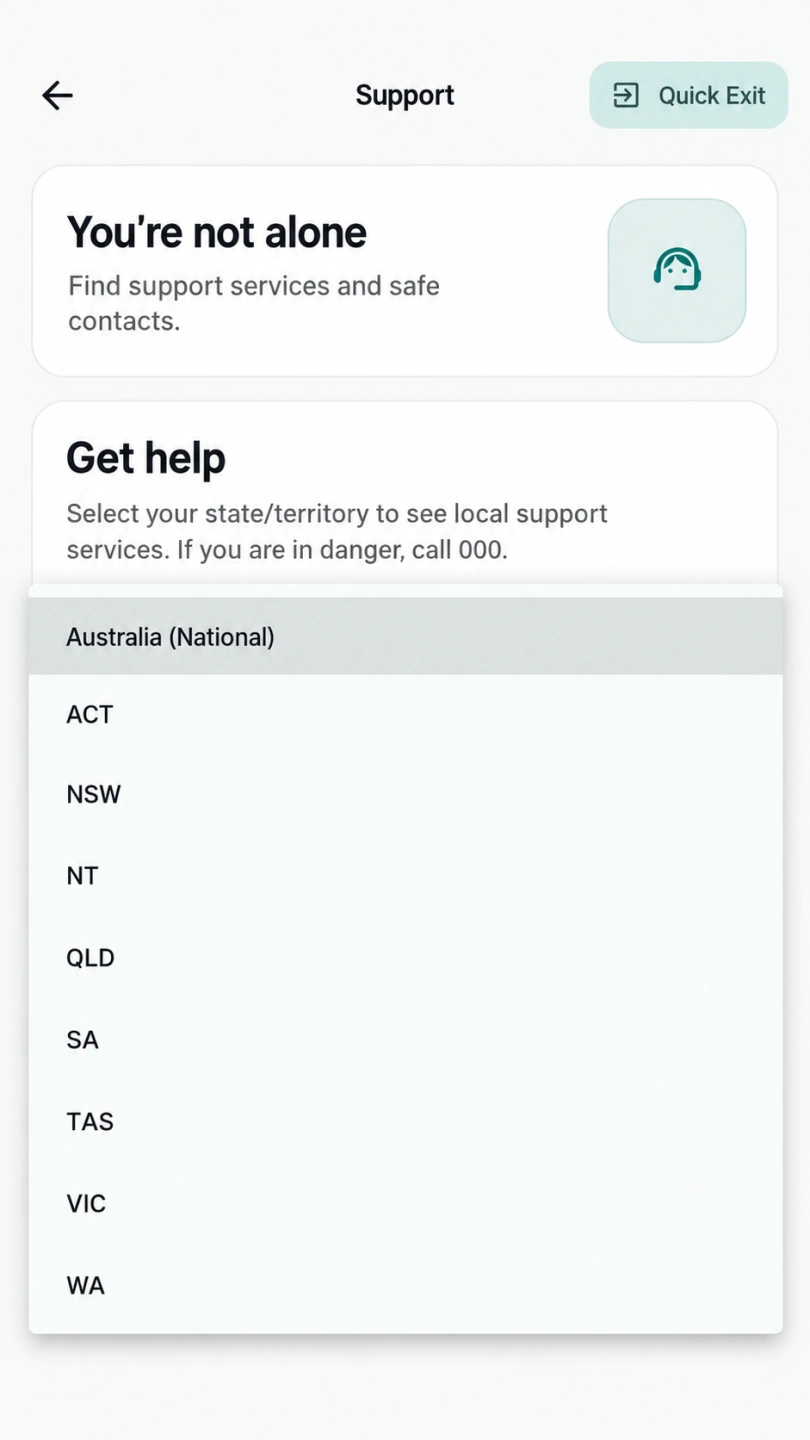
DV APP images
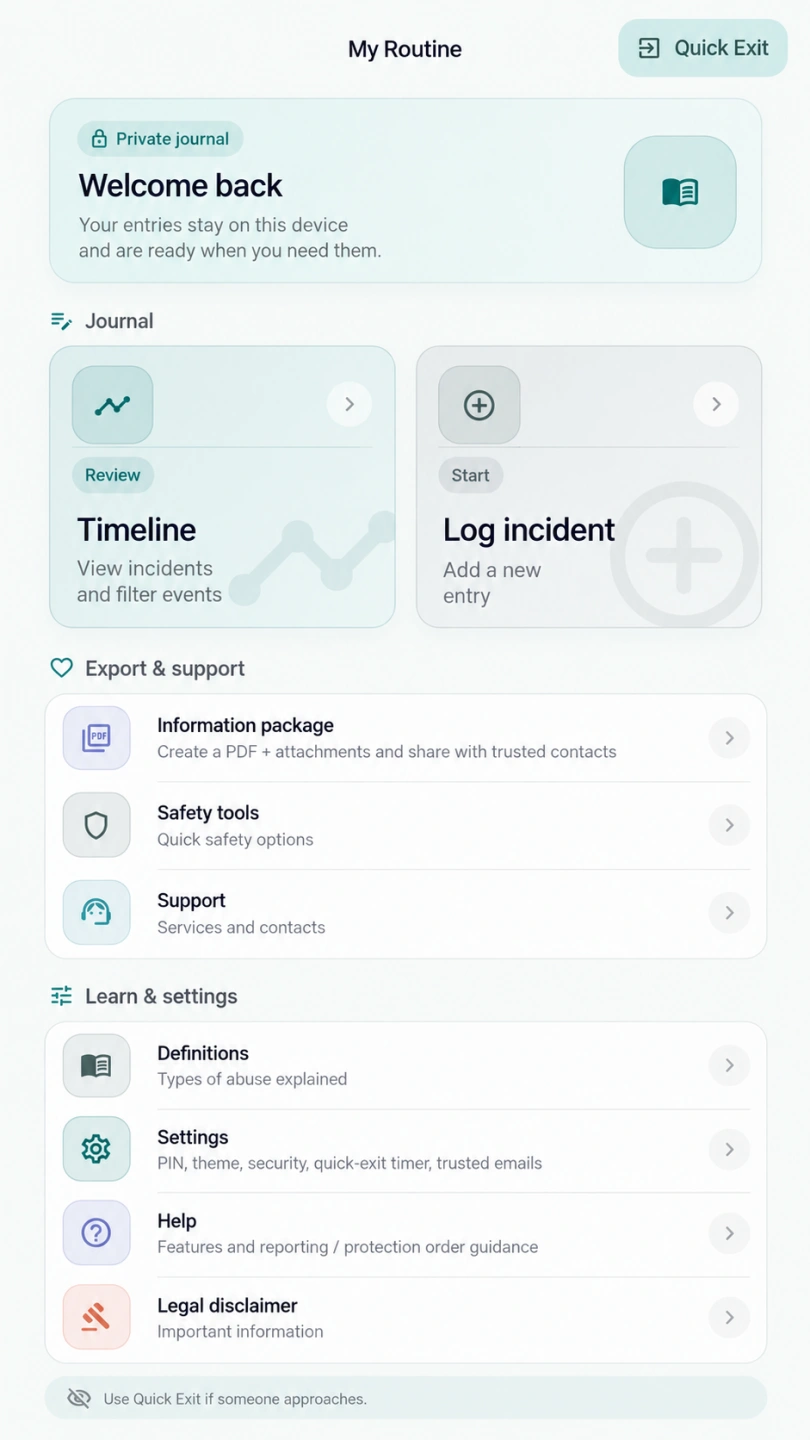
Menu
This is the main menu screen within the app where you can navigate to differnt areas including log entries, settings and also look at a timeline of events.
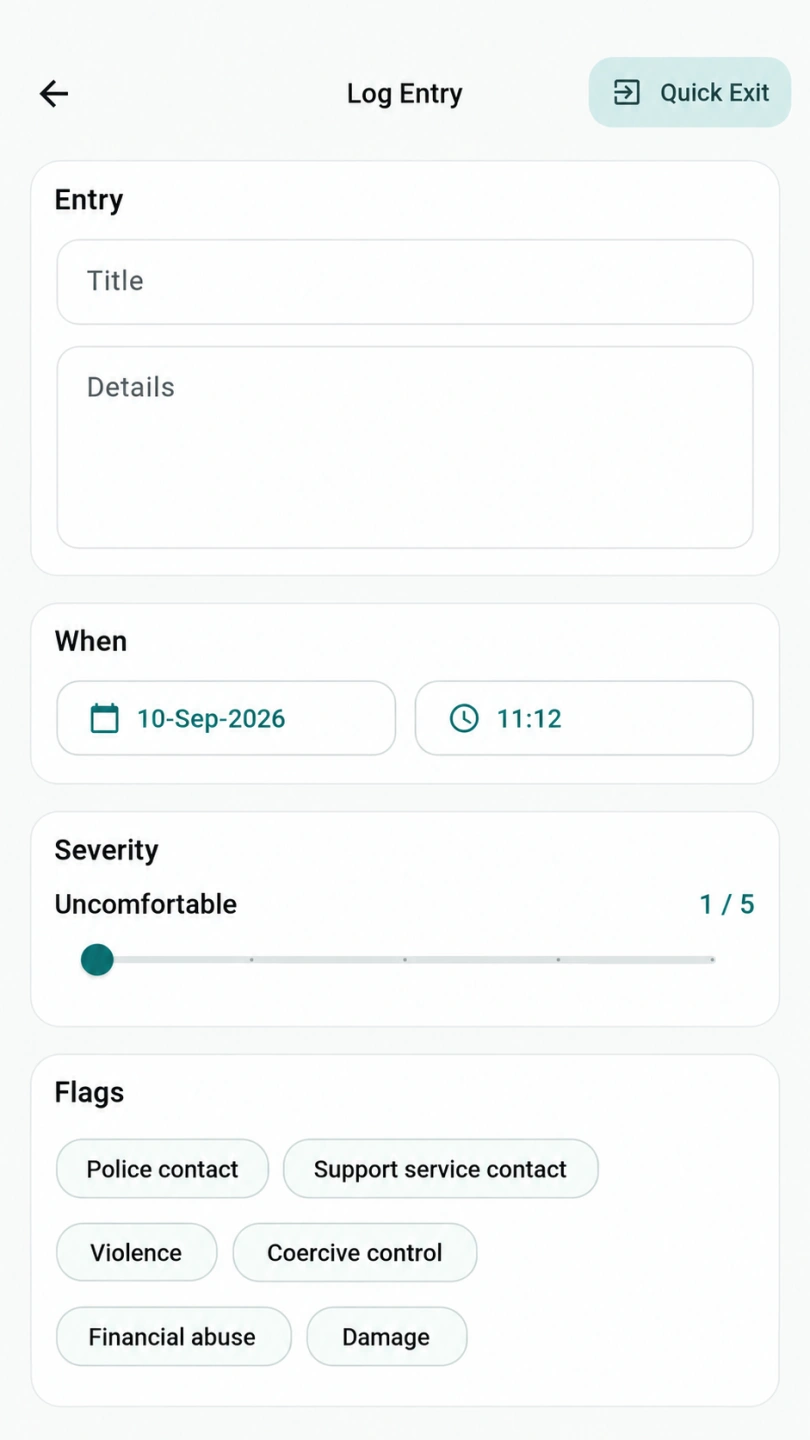
Log entry Screen
This screen is where you log entries of incidents, and you are able to select what occurred and save the entry, which will then show up in the timeline.
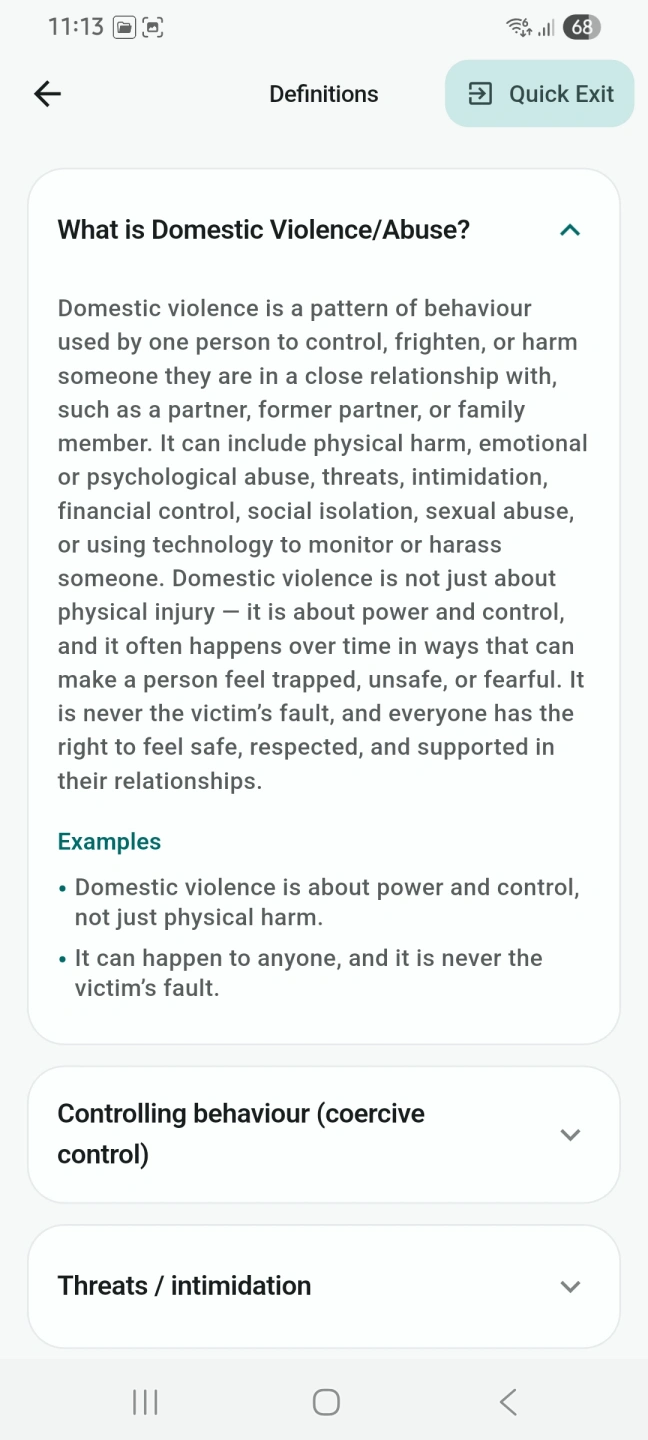
Definitions Page
If you are not sure of what the terminology is, then there is a helpful definitions page to explain these further to help better understand your situation.
Wildfern Global Privacy policy
Wildfern Privacy Policy
Effective date: 16 September 2026 Last updated: 16 September 2026
Wildfern is developed and provided by Cove & Compass (“Wildfern”, “we”, “us” or “our”).
Wildfern is designed with privacy in mind. The app may be used to record highly sensitive personal information relating to domestic and family violence, coercive control, stalking, harassment, abuse, incidents, communications and other events.
A central principle of Wildfern is that information entered into the app is intended to remain under the user’s control.
This Privacy Policy explains how Wildfern accesses, processes, stores, exports and protects information and what choices are available to users.
1. Information stored in Wildfern
Depending on the features used, Wildfern may allow users to record or attach information including:
incident descriptions and journal entries;
dates and times;
categories, indicators, flags or incident types;
photographs and images;
video files;
audio recordings or voice notes;
documents and other files;
information about communications, contact or behaviour;
information concerning domestic or family violence, stalking, harassment, coercive control or abuse;
information about police, legal, medical or support-service contact;
names or information relating to other people;
information that may be considered sensitive, health-related or otherwise protected under applicable privacy laws; and
application security information, such as PIN or access-control information where those features are enabled.
This information is referred to in this policy as “App Content.”
2. Where your App Content is stored
Wildfern is designed so that App Content is stored locally on the user's device unless the user deliberately chooses an option that transfers or copies that information elsewhere.
Cove & Compass does not operate a central database containing users' Wildfern incident records, diary entries, photographs, recordings or evidence.
We therefore normally cannot:
see your incident records;
read your journal or timeline;
view your photographs, videos or documents;
listen to recordings stored in the app;
recover entries you have deleted;
recover a forgotten PIN unless the app itself provides a local recovery mechanism; or
access information stored only on your device.
Local information may still be affected by the security, backup and storage settings of the device itself.
3. Information we do not sell
Cove & Compass does not sell users' App Content or personal information.
Wildfern is not designed to use App Content for advertising, behavioural profiling or targeted marketing.
We do not use information recorded about domestic violence, abuse, stalking, harassment or other incidents for advertising purposes.
4. Device permissions
Wildfern may request permission to access device features where required for functionality selected by the user.
Depending on the platform and features used, these permissions may include access to:
the camera;
photographs or media selected by the user;
files or documents;
the microphone for recording audio; and
device storage or file-selection services.
Permissions are requested so that the relevant feature can operate.
Users can manage device permissions through the privacy or application settings provided by their operating system. Disabling a permission may prevent some Wildfern features from functioning.
Wildfern should only access information necessary for a feature the user chooses to use.
5. Exporting and sharing information
Wildfern may provide features that allow users to create, export, save or share information, such as:
evidence packs;
reports;
PDF, HTML or other documents;
backup files;
archive files;
photographs, videos, recordings or attachments; and
other exported records.
An export or sharing action is initiated by the user.
Once information is exported from Wildfern, it may no longer be protected by Wildfern's application-level protections.
For example, a user may choose to save or send information using:
email;
messaging applications;
cloud-storage services;
file-sharing applications;
another device;
external storage;
legal representatives;
police or other authorities;
courts;
support services; or
another person or organisation.
Any third-party service selected by the user may process the information according to that service's own privacy policy and terms.
Cove & Compass is not responsible for the privacy or security practices of a third-party service independently selected by the user.
Users should carefully consider the destination and recipient before sharing sensitive information.
6. Backup and restore
Wildfern may allow users to create and restore backups.
Where the user chooses a backup destination, the backup may be stored outside Wildfern, including in a location or third-party cloud service selected by the user.
Cove & Compass does not control third-party storage providers selected by the user.
Users are responsible for protecting exported backup files and for deleting copies they no longer require.
Deleting Wildfern or deleting information inside Wildfern may not automatically delete separate backups or exported copies stored elsewhere.
7. Device and operating-system backups
Apple, Google, a device manufacturer or another operating-system provider may offer device backup, synchronisation or recovery services.
Whether Wildfern application information is included in such services depends on the user's device, operating system, settings and the technical configuration of the app.
These services are operated independently of Cove & Compass and are subject to the provider's own terms and privacy policies.
8. PINs and security features
Wildfern may provide optional or required security features such as PIN access, recovery features, locking mechanisms or other access controls.
These features are intended to reduce unauthorised access but no security system can guarantee absolute protection.
Users should:
protect their device passcode;
avoid sharing their Wildfern PIN;
keep recovery information in a safe location;
review who has access to their device;
use appropriate device security settings; and
exercise caution when creating unprotected exports or backups.
Cove & Compass cannot guarantee that a person with physical, administrative or forensic access to a device will be unable to access information stored on that device.
9. Data transmitted to Cove & Compass
Wildfern is designed so that App Content is not routinely transmitted to Cove & Compass.
However, we may receive information if a user voluntarily contacts us, for example through a support email or other support channel.
This may include:
the user's name;
email address;
device or application information supplied by the user;
correspondence;
screenshots supplied by the user; and
any information the user chooses to include in a support request.
Users should not send sensitive incident records or evidence to Cove & Compass unless it is necessary for their support request and they understand what they are sending.
Support correspondence may be retained for as long as reasonably necessary to respond to the request, maintain appropriate business records, resolve disputes, prevent misuse or satisfy applicable legal obligations.
10. Analytics, advertising and tracking
Wildfern is intended to operate without using App Content for advertising or behavioural profiling.
Cove & Compass does not sell App Content to advertisers or data brokers.
If a future version of Wildfern introduces analytics, crash-reporting technology or another service that changes the way personal information is collected or transmitted, this Privacy Policy and the relevant app-store privacy disclosures will be updated as required.
11. Third-party services and app stores
Wildfern is distributed through platforms that may include the Apple App Store and Google Play.
Apple, Google and other platform providers may independently process information relating to downloading, purchasing, installing or using applications.
That processing is controlled by those companies and is subject to their respective privacy policies.
Cove & Compass does not control information collected independently by an app store, device manufacturer, operating-system provider or telecommunications provider.
12. Data retention
App Content stored locally in Wildfern generally remains on the user's device until the user:
deletes individual information;
deletes or resets application data;
restores or replaces a backup;
removes the application; or
otherwise removes the information from the device.
Separate copies may continue to exist in:
exported files;
external backups;
cloud services;
emails;
messages;
shared devices; or
copies supplied to another person or organisation.
Those copies must generally be managed or deleted at their destination.
Because Cove & Compass does not normally possess App Content stored only on a user's device, we cannot remotely delete that local information for the user.
13. Uninstalling Wildfern
Uninstalling Wildfern may remove locally stored application information from the device, depending on the operating system and device configuration.
Users should create any required backup before uninstalling.
Uninstalling the application may not remove copies contained in device backups, cloud backups or previously exported files.
14. Privacy rights
Privacy and data-protection rights vary by country and region.
Depending on where a user lives and whether the relevant law applies, rights may include rights to:
obtain information about how personal information is processed;
access personal information held by an organisation;
correct inaccurate personal information;
request deletion;
restrict certain processing;
object to certain processing;
obtain portable copies of personal information;
withdraw consent where processing relies on consent;
limit certain uses of sensitive information;
opt out of certain sales or sharing of personal information; and
lodge a complaint with a relevant privacy or data-protection authority.
These rights apply to information that Cove & Compass actually controls and where the relevant law provides the right.
Because App Content is generally stored locally and is not transmitted to Cove & Compass, we may have no copy of the information to access, correct or delete on the user's behalf.
Users generally control locally stored information directly through Wildfern and their device.
15. European Economic Area and United Kingdom
Where the European Union General Data Protection Regulation, United Kingdom GDPR or similar legislation applies, users may have additional rights concerning personal information processed by Cove & Compass.
Where we process information submitted directly to us, such as support correspondence, processing will be carried out only where there is an appropriate legal basis, which may include:
responding to a user's request or providing requested services;
compliance with legal obligations;
legitimate interests in operating, securing and improving the service where those interests do not override the individual's rights; or
consent where consent is required.
Wildfern does not use App Content stored locally on a user's device to make automated decisions about the user or create advertising profiles.
16. California and other United States privacy rights
Residents of California and certain other United States jurisdictions may have specific rights relating to personal information where applicable law covers Cove & Compass.
Cove & Compass does not sell Wildfern App Content.
Cove & Compass does not use Wildfern App Content for cross-context behavioural advertising.
Where applicable, users may contact us regarding requests to know, access, correct or delete personal information that Cove & Compass actually holds.
These provisions do not create rights beyond those provided by applicable law and do not imply that a particular privacy law applies where its legal thresholds have not been met.
17. International users and transfers
Wildfern may be available in multiple countries.
If a user contacts Cove & Compass directly, information contained in that communication may be processed in Australia or in locations where our communication or technology service providers operate.
Where required by applicable law, reasonable safeguards will be used when personal information is transferred internationally.
App Content that remains solely on the user's device is not transferred internationally by Cove & Compass merely because the user travels to another country.
If the user chooses to upload or export information to a third-party cloud or communications service, that provider may transfer or store the information internationally under its own policies.
18. Information concerning other people
Wildfern may allow users to record information concerning another person.
Users are responsible for considering applicable privacy, surveillance, recording, evidence and other laws before recording or sharing information about another person.
Laws concerning audio recording, video recording, communications and evidence vary considerably between jurisdictions.
Wildfern does not provide authorisation to record a person where recording would otherwise be unlawful.
19. Law-enforcement and legal requests
Because Cove & Compass generally does not possess App Content stored only on users' devices, we normally cannot provide that information in response to a request directed to us.
Information exported to another provider or retained by another organisation may be subject to that provider's legal obligations.
If Cove & Compass receives a valid legal request concerning information actually held by us, we will respond in accordance with applicable law.
20. Children
Wildfern is primarily intended for adults and is not designed as a service directed toward young children.
Cove & Compass does not knowingly operate a server-based Wildfern database containing children's incident records.
Where a child or young person may use Wildfern, their use must comply with applicable laws, app-store requirements and any requirements for parental or guardian consent that apply in their jurisdiction.
21. Security
We take privacy and security seriously and design Wildfern to minimise unnecessary transfer of sensitive information.
Security measures may include operating-system application sandboxing, device security controls and Wildfern access-control features.
However, no device, software application, encryption technology, storage medium or communication system can be guaranteed to be completely secure.
Users should consider their personal circumstances when deciding how to secure their device, where to store backups and when or how to share evidence.
22. Safety considerations
The nature of domestic and family violence means that device access itself may sometimes present a safety risk.
Users should consider whether another person may:
know their device PIN or password;
have biometric access to their device;
have access to a connected account;
view notifications;
access cloud backups;
inspect recently used applications; or
access exported documents or shared files.
Wildfern cannot determine an individual user's safety circumstances.
Wildfern is not an emergency service.
If a person is in immediate danger, they should contact the emergency services or an appropriate domestic and family violence service in their country or region when it is safe to do so.
23. Changes to this Privacy Policy
Wildfern may change over time, and privacy laws and platform requirements may also change.
We may update this Privacy Policy when required to reflect:
changes to Wildfern functionality;
changes in data-handling practices;
new legal obligations;
app-store requirements; or
security and privacy improvements.
The updated policy will display a revised “Last updated” date.
Material changes will be communicated where required by applicable law.
24. Contact us
Questions, privacy enquiries or requests concerning personal information actually held by Cove & Compass may be directed to:
Cove & Compass Wildfern Privacy Enquiries Email: covecompass2026@gmail.com
Website:Coveandcompas.xyz
Country: Australia
Please do not include sensitive domestic-violence records, photographs, recordings or evidence in a privacy enquiry unless doing so is necessary and you understand the information you are providing.
Frequently Asked Questions
Symptom Tracker – User Guide
About the App
Symptom Tracker helps you privately record symptoms, pain levels, medications, vital signs and other health information over time.
Your entries are organised into a timeline so you can identify patterns and provide clear information to your doctor or other healthcare professional.
The app is intended as a personal record-keeping tool. It does not provide medical advice, diagnosis or emergency assistance.
Getting Started
When you first open the app, you will be taken to the Home screen.
From here, you can:
Record a new symptom
View your symptom timeline
Manage medications
Record vital signs
Review insights and trends
Update your personal and medical profile
Manage backup, export and app settings
You can return to the Home screen at any time by selecting Home from the navigation menu.
Setting Up Your Profile
Open Profile to enter information that may be useful when reviewing or exporting your health records.
You may record:
Full name
Date of birth
Hospital or health service
Patient or UR number
Doctor or healthcare provider
Emergency contact
Allergies
Existing medical conditions
Email address
Phone number
Home address
Profile photograph
You do not need to complete every field. Only enter information that you want stored in the app.
Remember to select Save after making changes.
Recording a Symptom
To create a new entry:
Open the app and select Log Symptoms.
Select the date and time the symptom occurred.
Choose one or more symptoms from the available list.
Select Other if the symptom is not listed, then enter a description.
Use the severity slider to rate the symptom from 1 to 10.
Select the affected area on the body map.
Add notes describing what happened.
Add photographs or videos where appropriate.
Review the information and select Save.
A severity of 1 represents a very mild symptom, while 10 represents the most severe level you can reasonably imagine.
Try to use the scale consistently so changes can be compared over time.
Using the Body Map
The body map allows you to record where a symptom occurred.
You can select areas from the front or back of the body, including:
Head and neck
Chest
Abdomen and pelvis
Upper and lower back
Arms and hands
Upper and lower legs
Feet
Buttocks
Select the area that most closely represents where the symptom occurred.
Where a symptom affects several areas, select each relevant location or explain the additional areas in the notes section.
Adding Notes
Use the notes field to include information such as:
What the symptom felt like
How long it lasted
What you were doing when it began
Possible triggers
Food or medication taken beforehand
What made it better or worse
Whether the symptom interrupted sleep or daily activities
Whether medical assistance was required
Clear and factual notes may make your timeline more useful when discussing symptoms with a healthcare professional.
Adding Photographs and Videos
You may attach photographs or short videos to a symptom entry.
To add media:
Open the symptom entry.
Select the camera, gallery or media button.
Choose whether to take a new photograph or video, or select an existing item.
Confirm the selected media.
Save the entry.
Only attach media that is relevant to your health record.
Examples may include swelling, bruising, a rash, wound healing or changes in appearance.
Videos may be limited in length depending on your device and app version.
Viewing the Timeline
Open Timeline to review your saved symptom entries.
Entries are grouped by month and display information such as:
Date and time
Recorded symptoms
Severity
Selected body areas
Notes
Attached photographs or videos
You can change the order of the timeline to show the newest or oldest entries first.
Use the available filters to display particular symptoms, severity levels or other recorded information.
Select an entry to view its complete details.
Editing an Entry
To update an existing symptom entry:
Open Timeline.
Select the entry you want to change.
Select Edit.
Update the required information.
Select Save.
The revised information will appear in your timeline.
Avoid changing an entry if you need to preserve exactly what was recorded at the time. Instead, consider creating a new follow-up entry that explains what changed.
Deleting an Entry
To remove an entry:
Open the entry from the Timeline.
Select Delete.
Confirm that you want to remove it.
Deleted entries may not be recoverable unless they are included in a previous backup.
Recording Medications
Open Medications to maintain a list of medications you are currently taking.
Depending on the available fields, you may record:
Medication name
Dosage
Frequency
Time taken
Start date
End date
Prescribing doctor
Reason for taking the medication
Additional notes
Keep this information up to date, particularly before exporting a report for a healthcare appointment.
Do not start, stop or change medication based solely on information displayed by the app. Medication decisions should be discussed with an appropriate healthcare professional.
Recording Vital Signs
Open Vitals to record health measurements such as:
Blood pressure
Heart rate
Temperature
Blood oxygen level
Weight
Blood glucose
Respiratory rate
Enter the measurement, the date and time, and any relevant notes.
Use properly maintained equipment and follow the manufacturer’s instructions when taking measurements.
The app records the information you enter but does not confirm whether a reading is medically normal or accurate.
Viewing Insights
Open Insights to review summaries and patterns based on your recorded information.
Insights may help you identify:
Frequently recorded symptoms
Changes in symptom severity
Commonly affected body areas
Symptom frequency over time
Possible patterns involving medication or vital signs
Insights are based only on the information entered into the app. They should not be treated as a diagnosis or professional medical assessment.
Exporting Your Records
The app may allow you to export your records as a PDF or CSV file.
To export your information:
Open Settings or the relevant Export section.
Select the required export format.
Choose the entries or date range to include, where available.
Create the export.
Save or share the file using your device’s available options.
PDF Export
A PDF is useful when you want a readable report for a doctor, specialist or other healthcare provider.
CSV Export
A CSV file contains information in a spreadsheet-compatible format. It may be useful for reviewing your records on a computer or performing further analysis.
Always review an exported file before sharing it to ensure it contains only the information you intend to provide.
Creating a Backup
Backups help protect your information if your device is lost, replaced, damaged or reset.
To create a backup:
Open Settings.
Select Backup or Export Backup.
Choose where the backup file will be saved.
Wait for confirmation that the backup has been completed.
Store the backup in a secure location.
The backup may include your symptom entries, profile, medications, vital signs and attached media.
Because backup files may contain sensitive health information, do not store them in a public or shared location.
Restoring a Backup
Restoring a backup imports previously saved information into the app.
To restore your records:
Open Settings.
Select Restore Backup or Import Backup.
Locate and select the backup file.
Confirm that you want to restore the information.
Wait for the restoration process to finish.
Review the Timeline, Profile, Medications and Vitals sections.
Restoring a backup may replace or combine with information currently stored in the app, depending on the app version. Create a current backup before beginning a restoration.
Only restore backup files created by the Symptom Tracker app.
Privacy and Data Storage
Your health information is sensitive.
The app is designed to store your records on your device unless you choose to export, back up or share them.
The developer cannot access information stored only on your device.
You are responsible for:
Securing your phone or tablet
Using a device passcode, fingerprint or facial recognition
Keeping exported reports and backups secure
Checking who has access to shared files or cloud storage
Removing personal information before sharing a report where appropriate
Deleting the app may permanently remove locally stored information. Create a backup before deleting or reinstalling the app.
Preparing for a Medical Appointment
Before an appointment, review your timeline and check that important entries are complete.
It may be helpful to prepare:
The date symptoms began
How often symptoms occur
Typical and highest severity
A list of current medications
Recent vital signs
Possible triggers
Photographs showing visible changes
Treatments already attempted
Questions you want to ask
You may export a PDF report or show relevant entries directly from the app.
Important Medical Information
Symptom Tracker is not a medical device and does not replace professional medical care.
The app does not:
Diagnose medical conditions
Assess whether symptoms are serious
Recommend treatment
Monitor you in real time
Contact emergency services
Guarantee that entered information is accurate or complete
Seek advice from a qualified healthcare professional if you are concerned about your symptoms.
For a medical emergency in Australia, call 000 immediately.
Examples of symptoms that may require urgent medical assistance include severe difficulty breathing, chest pain, signs of stroke, loss of consciousness, uncontrolled bleeding, a severe allergic reaction or any sudden and serious deterioration.

Privacy Policy
App: Medical Symptom Tracker Developer: Cove & Compass Effective date: 24 July 2026 Website: https://coveandcompass.xyz Email: covecompass2026@gmail.com
1. Overview
Cove & Compass respects your privacy and understands that health information is sensitive.
This Privacy Policy explains how the Medical Symptom Tracker application (“the App”) handles information entered, stored, exported or shared by users.
The App is designed as a personal record-keeping tool. Information entered into the App is normally stored locally on your device and is not routinely sent to, collected by or stored on servers operated by Cove & Compass.
2. Information stored in the App
You may choose to enter information including:
Your name, date of birth and contact details;
Doctor, hospital and emergency-contact details;
Medical reference numbers;
Allergies and medical conditions;
Symptoms, severity levels and affected body areas;
Medication details;
Vital signs and health measurements;
Notes, dates and times;
Photographs, videos and attachments; and
Reports, exports and backup files.
This information may be personal information or sensitive health information.
3. Information collected by Cove & Compass
Cove & Compass does not intentionally collect or receive the health information you enter into the App.
We do not:
Sell or rent your information;
Use your health information for advertising;
Track you across other applications or websites;
Create advertising profiles;
Share your records with employers, insurers or data brokers; or
Operate a server that stores your symptom records.
We may only see information from the App if you deliberately send it to us, such as in a support email, screenshot or exported file.
This policy assumes the App does not contain third-party advertising, tracking or analytics services. This Privacy Policy will be updated if the App’s data-handling practices change.
4. How the App uses information
Information entered into the App may be used locally to:
Record and organise symptoms;
Maintain a symptom timeline;
Record medications and vital signs;
Display graphs, summaries or trends;
Store photographs and videos;
Search and filter records;
Create reports; and
Export or restore backup files.
The App does not diagnose medical conditions and is not a replacement for professional medical advice, diagnosis or treatment.
5. Device permissions
The App may request access to certain device features.
Camera: Used when you choose to take a photograph or record a video.
Photos and media: Used when you choose to attach an existing photograph or video.
Files and storage: Used when you save, import, export, restore or share files.
Notifications: Used if you choose to enable medication reminders or other App notifications.
Permissions can be managed through your device settings. Disabling a permission may prevent the related feature from working.
6. Storage and security
Information entered into the App is normally stored within the App’s storage area on your device.
The security of your information depends partly on your device, operating system, screen lock, passcode, biometric settings, backup settings and the security of any location where you save exported files.
You should:
Protect your device with a strong passcode;
Keep your device and operating system updated;
Avoid sharing access to your device;
Store backup files securely; and
Check recipients before sharing health information.
Although reasonable care is taken when developing the App, no device, application or storage method can be guaranteed to be completely secure.
7. Device and cloud backups
The App does not automatically upload your records to a server operated by Cove & Compass.
However, your device may include App information in an iCloud, Google, computer or other device backup, depending on your settings and operating system.
You may also choose to create a backup and save it to local storage, cloud storage, email, removable storage or another service.
Once information is exported or saved outside the App, it becomes subject to the privacy and security practices of the selected service or location.
Cove & Compass does not control third-party storage providers or services selected by the user.
8. Exporting and sharing information
The App may allow you to create and share reports, spreadsheets, media files or backups.
Information is only shared when you choose to export it or select a sharing destination through your device.
You are responsible for checking:
The contents of the exported file;
The intended recipient;
The selected application or storage service; and
Whether the information is appropriate to share.
Cove & Compass is not responsible for how information is stored, used or disclosed after you share or export it.
9. Apple, Google and third-party services
Apple, Google, your device manufacturer, your mobile provider or the relevant app store may independently collect information relating to downloading, purchasing, updating or using the App.
Depending on your settings, these providers may also collect technical information, crash reports or diagnostic information.
Their handling of information is governed by their own privacy policies. Cove & Compass does not control their independent practices.
10. Support communications
When contacting Cove & Compass for support, you may provide:
Your name and email address;
A description of the issue;
Device or operating-system details;
Screenshots;
Error messages; or
Files you deliberately attach.
Please avoid sending sensitive health information unless it is necessary to resolve the issue.
Support information will only be used to respond to your enquiry, investigate problems, maintain the App, comply with legal obligations or protect the security of the App.
11. Disclosure of information
Cove & Compass does not sell personal or health information.
Information deliberately provided to us may only be disclosed where reasonably necessary:
To respond to a support request;
To service providers assisting with legitimate business operations;
To investigate fraud, misuse or security concerns;
To protect legal rights or safety; or
Where required or authorised by law.
Because App records are normally stored only on your device, Cove & Compass generally cannot access, recover or disclose those records.
12. Retention and deletion
Information stored in the App remains on your device until you delete it, clear the App’s data, uninstall the App, reset your device or otherwise remove the information.
Uninstalling the App may delete locally stored information. Copies may remain in device backups or in files previously exported to another location.
Deleting information from the App does not automatically delete copies stored in email, messaging services, cloud storage, computers or other locations.
13. Access and correction
You can access, edit or delete locally stored information using the available features within the App.
Cove & Compass generally cannot access, correct, recover or delete information stored only on your device.
You may contact us regarding information you have deliberately provided through a support request.
14. Loss of information
You are responsible for maintaining suitable backups of information you wish to keep.
Information may be lost because of:
Device loss, damage or failure;
Accidental deletion;
Uninstalling the App;
Operating-system or application updates;
Storage corruption;
Backup failure;
Damaged or incompatible backup files; or
Changes made by Apple, Google or a device manufacturer.
To the extent permitted by law, Cove & Compass is not responsible for information lost due to circumstances outside its reasonable control.
Nothing in this Privacy Policy excludes any legal right or remedy that cannot lawfully be excluded.
15. Children’s privacy
The App is not specifically directed at children under 13.
Where the App is used to record information about a child or another person, the user is responsible for ensuring they have the necessary authority or consent to record and share that information.
A parent, guardian or authorised carer should supervise use of the App by a minor.
16. Medical and emergency disclaimer
The App is a personal record-keeping tool only.
It does not provide medical advice, diagnosis, treatment or emergency monitoring. It must not be relied upon to identify or respond to a medical emergency.
Always seek advice from a qualified healthcare professional regarding symptoms or medical concerns.
In an emergency, contact the emergency services available in your location.
17. Changes to this policy
This Privacy Policy may be updated if App features, legal requirements, platform requirements or data-handling practices change.
The updated policy will display a revised effective date.
18. Contact
For privacy questions, concerns or requests, contact:
Cove & Compass Queensland, Australia Website: https://coveandcompass.xyz Email: covecompass2026@gmail.com
Please avoid including sensitive medical information in your initial email unless it is necessary.
19. Australian privacy commitment
Where applicable, Cove & Compass aims to handle personal information consistently with the Privacy Act 1988 (Cth), the Australian Privacy Principles and other applicable Australian laws.
Troubleshooting
An entry will not save
Check that all required fields have been completed. Close and reopen the app, then try again.
A photograph or video is not appearing
Check that the app has permission to access your camera and photo library in your device settings.
An export cannot be opened
Make sure your device has an application capable of opening PDF or CSV files. Try saving the export to your device before opening it.
A backup cannot be restored
Confirm that the selected file was created by Symptom Tracker and has not been renamed, edited or damaged.
Information is missing after reinstalling the app
Locally stored information may be removed when the app is deleted. Restore your most recent backup where one is available.
Recommended Use
For the most useful records:
Record symptoms as soon as practical
Include the date and time the symptom occurred
Use the severity scale consistently
Add factual and detailed notes
Record relevant medications and vital signs
Create regular backups
Review your information before sharing it
Discuss significant changes with a healthcare professional